



Operating the Navigation-Equipped Touchscreen
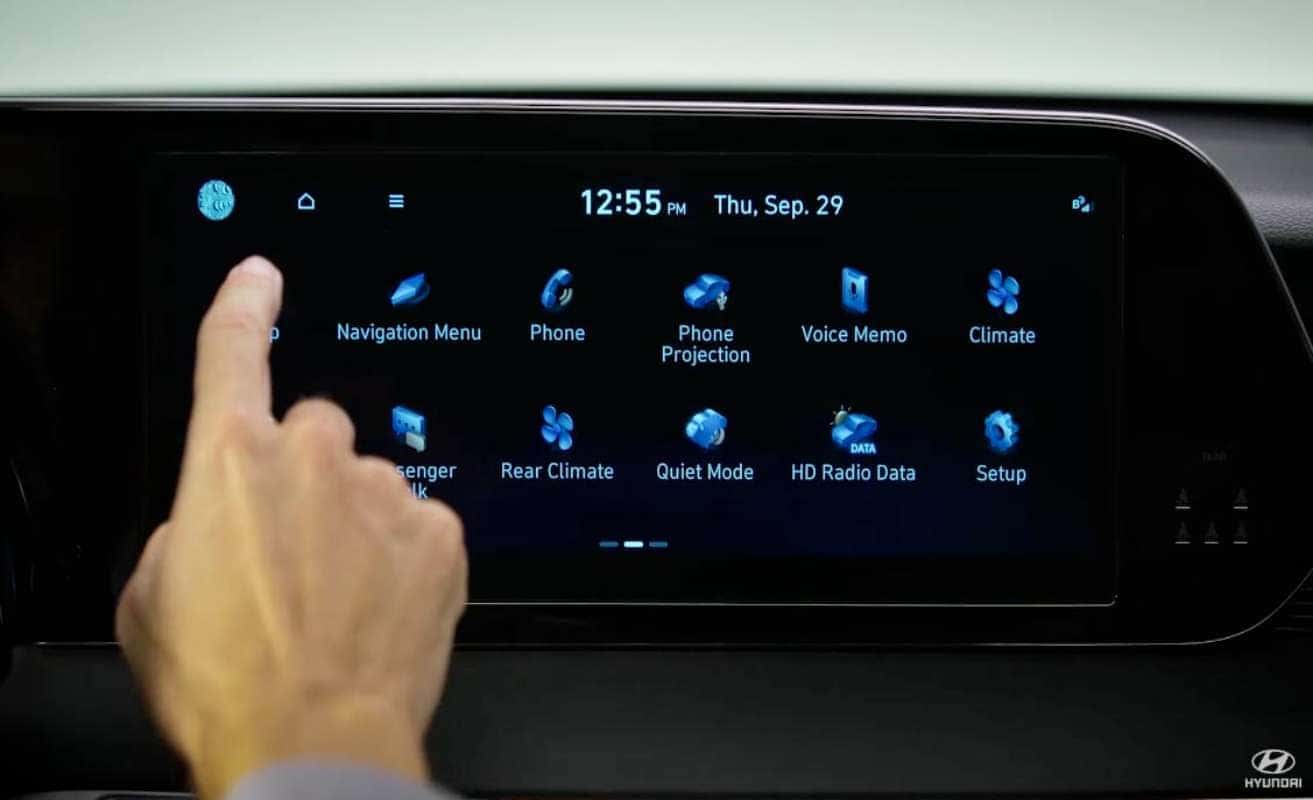
Upon startup, the touchscreen will display the user profile selection screen. You can also select the preferred language here. Select confirm when ready to proceed. The homepage will display the date and time, weather and location information and media information. Select any of these sections to go directly to those screens. Some electric vehicles will also show the battery state of charge, an estimated range, and will also be able to go directly to the electric vehicle menu by pressing the vehicle image. Selecting the navigation icon will take you to the map page. Swiping left on the homepage will bring you to the all menu screens. Some vehicles may have only one while others may have two. The icons on these screens will allow you to access multiple functions and settings on your Hyundai. You can also edit the icons on the all menu screen.
Available features and settings will vary based on your vehicle, but the following are found on all vehicles with the navigation touchscreen. Pressing map will display the map screen. Navigation menu takes you to the screen where you can input and edit destinations among other functions. Phone takes you to the phone menu and setting screen. Radio and media icons lead to the screens where you can control these functions and settings. Phone projection, CarPlay and Android Auto allow you to connect and control compatible smartphones. Blue link controls blue link services and settings.
Setup provides access to many settings and controls. Select general to change settings such as language, keyboard type, and time zone. Selecting sound lets you configure audio settings such as speed dependent volume control, tone, and position. Selecting display lets you change the screen brightness and modes. Other models may have other settings such as driving information or vehicle. For further customization see your owner’s manual for more information on these settings. Vehicles equipped with the split screen feature can turn the feature on and off by tapping the arrow on the right side of the screen. Information can then be scrolled through by swiping up or down.
The information shown on the split screen can be customized. Select setup, then screen theme or screen layout, and then split screen. You can also set the vehicle to provide feedback when you press the icons. To do so, select setup, then sound. At the top of the screen press the beep button to turn on or off the beep feedback feature.
For more information on these and other features, be sure to consult your owner’s manual available at myhyundai.com or the user’s manual accessible via the touchscreen. And be sure to explore the How-to Guides at the Hyundai USA YouTube channel and myhyundai.com.
0 comment(s) so far on Operating the Navigation-Equipped Touchscreen